The digital piano, a marvel of modern musical engineering, offers the authentic feel and sound of an acoustic instrument without the maintenance demands. However, even these sophisticated devices can encounter issues, and a non-responsive pedal is one of the most common frustrations for pianists. When your sustain, soft, or sostenuto pedal stops working as it should, it can disrupt your playing and musical expression. Fortunately, many pedal problems have simple solutions that don’t require a technician. This guide will help you diagnose and fix the most frequent digital piano pedal malfunctions, getting you back to playing in no time.
Understanding Digital Piano Pedals
Before diving into troubleshooting, it’s helpful to understand the different types of pedals found on most digital pianos and their functions:
- Sustain Pedal (Damper Pedal): This is the most frequently used pedal, typically on the right. When pressed, it allows notes to continue sounding even after you lift your fingers from the keys, mimicking the effect of lifting the dampers on an acoustic piano. This creates a fuller, richer sound.
- Soft Pedal (Una Corda Pedal): Usually on the left, the soft pedal reduces the volume and subtly changes the tone of the notes. On an acoustic piano, it shifts the hammers, striking fewer strings or hitting them in a softer spot. On a digital piano, it digitally modifies the sound.
- Sostenuto Pedal: Found in the middle, the sostenuto pedal is less common but highly versatile. It sustains only the notes held down at the moment the pedal is pressed, allowing subsequent notes to be played without being sustained. This creates unique textural possibilities.
|
Our Picks for the Best Digital Piano in 2026
As an Amazon Associate I earn from qualifying purchases.
|
||
| Num | Product | Action |
|---|---|---|
| 1 | Alesis Melody 61 MK4 Keyboard Piano for Beginners with 61 Keys, Speakers, Stand, Bench, Headphones, Tablet/Sheet Music Stand, 300 Sounds and Music Lessons |

|
| 2 | 61 keys keyboard piano, Electronic Digital Piano with Built-In Speaker Microphone, Sheet Stand and Power Supply, Portable piano Keyboard Gift Teaching for Beginners |
|
| 3 | RockJam RJ761 61 Key Keyboard Piano with Keyboard Bench, Digital Piano Stool, Sustain Pedal, Headphones & Lessons |
|
| 4 | Rhymo Folding Piano Keyboard, 61 Keys Sensitive Electric Piano, Weighted Portable Electric Keyboards with Bluetooth MIDI, Digital Foldable Keyboard for Beginner (Black) |
|
| 5 | Yamaha 88-Key Weighted Portable Digital Piano Keyboard with Music Rest, Sustain Foot Switch, Built-in Speakers, USB Connectivity, Black (P45B) |
|
| 6 | Yamaha 88-Key Digital Piano with Weighted Keys, Compact Design, Bluetooth, Keyboard, Music Rest, Sustain Foot Switch, and Built-in Speakers for Home Practice or Travel P145BT |
|
| 7 | Roland FP-10 | Compact 88-Note Digital Piano | SuperNATURAL Piano Tones | Authentic Acoustic Feel Keyboard | Great for Beginners & Experienced Players | Bluetooth & MIDI Connectivity |
|
| 8 | Yamaha P225 88-Key Digital Piano with Weighted Keys, Portable Design, Keyboard, Music Rest, Sustain Foot Switch, and Built-In Speakers, Black (P225B) |
|
| 9 | STRICH 88 Key Digital Piano Foldable Full Size Electric Keyboard with Semi-Weighted Sensitive Keys, Portable Electric Piano Set for Beginner, Bundle with Sustain Pedal, Headphones, Music Rest, SEP-88F |
|
| 10 | Portable Piano Keyboard, Semi-Weighted Folding Digital Piano 88 Key, Full Size, Wood Grain, Electric Piano Keyboard w/MIDI Bluetooth, Suitable for Adult, Toddler |
|
Most digital piano pedals are either a simple switch (on/off) or a continuous controller, offering varying degrees of effect depending on how far they are pressed. Understanding which type of pedal you have and its intended function is crucial for effective troubleshooting.
Common Reasons Your Digital Piano Pedal May Not Be Working
When your digital piano pedal goes silent, several factors could be at play. Many issues are surprisingly straightforward and can be resolved without special tools. Here are the most common culprits:
- Incorrect Polarity: One of the most frequent problems, especially with universal sustain pedals. If the pedal acts in reverse (sustain is on when the pedal is up and off when pressed) or stays constantly sustained, polarity is often the issue.
- Loose or Improperly Connected Cable: The cable connecting your pedal unit to the piano might be loose, partially unplugged, or inserted into the wrong jack. This can lead to intermittent function or no response at all.
- Damaged Cable: Over time, frequent stepping, bending, or general wear and tear can cause internal breaks in the pedal cable, resulting in a loss of signal.
- Dirt or Debris in the Pedal Unit: Dust, dirt, or foreign objects can accumulate inside the pedal mechanism, interfering with the switch or sensor that registers your press.
- Software or Settings Glitches: Sometimes, the digital piano’s internal software settings can become confused. This might manifest as the sustain function being turned off in a menu, or an internal parameter being incorrectly set.
- Bent Connector Pins: For multi-pedal units that connect via a specialized multi-pin cable, bent or damaged pins within the connector can prevent proper communication between the pedals and the piano.
- Incompatible Pedal: While many digital pianos use standard ¼-inch jacks for single pedals, some might require specific brand pedals, or a simple switch pedal might not work correctly with a piano expecting a continuous controller.
- Power On Sequence Issues: Plugging in the pedal while the digital piano is already powered on can sometimes confuse the instrument, leading to incorrect pedal behavior.
Understanding these potential causes is the first step toward a quick and effective fix.
Quick Fixes and Troubleshooting Steps
Don’t despair if your pedal isn’t responding; many issues can be resolved with a few simple checks. Try these troubleshooting steps in order:
1. The Power Cycle Reset
Often, the simplest solution is the most effective. A power cycle can clear minor software glitches.
- Step 1: Turn off your digital piano.
- Step 2: Unplug the pedal cable completely from the piano.
- Step 3: Wait about 10-15 seconds. This allows any residual electrical charge to dissipate.
- Step 4: Firmly plug the pedal cable back into the correct jack on your piano. Ensure it’s pushed in all the way; no metal part of the plug should be visible. For multi-pedal units, ensure the specialized connector is aligned correctly and inserted without bending pins.
- Step 5: Turn on your digital piano. Crucially, do not press any pedals while the instrument is booting up. This allows the piano to correctly calibrate and recognize the pedal’s default state.
- Step 6: Once the piano is fully on, test the pedal.
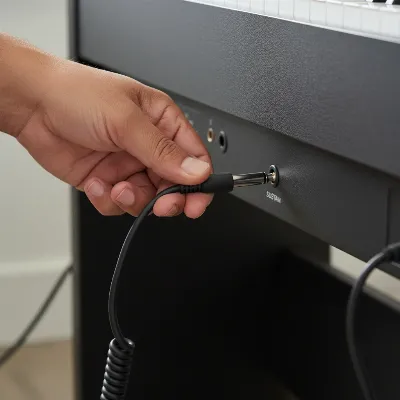 A close-up of a hand firmly plugging a sustain pedal cable into the input jack of a digital piano, ensuring a secure connection without visible metal.
2. Check the Cable Connection and Jack
A loose connection is a very common cause of pedal malfunction.
- Verify the Jack: Ensure the pedal is plugged into the correct input. For a single sustain pedal, it’s usually labeled “Sustain,” “Damper,” or “Switch Pedal 1.” Avoid “CC Pedal” or “Expression” jacks, as these are for different types of controllers.
- Reseat the Cable: Even if it looks connected, unplug and firmly re-plug the cable. Wiggle it slightly to ensure a snug fit.
- Inspect for Bent Pins: If you have a multi-pedal unit with a proprietary connector, carefully examine the pins inside the connector on both the cable and the piano’s jack. If any are bent, you might be able to gently straighten them with fine-tipped pliers, but be extremely cautious to avoid breaking them.
3. Flip the Polarity Switch
If your sustain pedal seems to be working in reverse (notes sustain when your foot is off the pedal, and stop when you press it), the polarity is likely inverted.
- Locate the Switch: Most single sustain pedals have a small “polarity” or “mode” switch on the underside or side of the pedal unit. It often has markings like “NC/NO,” “Open/Closed,” or symbols.
- Toggle and Test: With your piano powered off, flip the switch to the opposite position. Then, follow the power cycle reset steps (turn off, unplug, plug in, turn on without pressing) and test the pedal again. One of the settings should make the pedal function correctly.
4. Clean the Pedal Unit and Plug
Dust and debris can interfere with the internal mechanism.
- Clean the Plug: Use a clean cloth lightly dampened with rubbing alcohol to wipe the metal part of the pedal’s plug. This removes any grime that might impede the electrical connection.
- Clean Inside the Pedal (If Possible): If you’re comfortable, and your pedal allows, you can carefully unscrew the bottom plate of the pedal. Use compressed air or a soft brush to gently remove any dust or lint from around the internal switch or sensor. Avoid touching sensitive electronic components. Reassemble carefully.
5. Test the Cable for Damage
A damaged cable can be tricky to diagnose as the external casing might look fine.
- The “Wiggle Test”: Plug the pedal into the piano and turn the piano on. While pressing and holding the pedal, gently bend and flex the cable, especially near the plug and where it enters the pedal unit. If the sustain effect cuts in and out, or behaves erratically, it indicates an internal break in the cable. In this case, the cable (or the entire pedal, if the cable is not detachable) will need to be replaced.
6. Check Digital Piano Settings
Some digital pianos allow you to enable or disable pedal functions or adjust their behavior through the instrument’s menu.
- Consult Your Manual: Refer to your digital piano’s owner’s manual to find sections on pedal settings, MIDI settings, or utility functions. Look for options related to sustain, pedal assignment, or control setup.
- Reset Settings (If Applicable): Some advanced models might have a “MIDI XMIT” page or similar where a “ControlSetup” parameter might need to be set to “Internal Voices” or a similar default. As a last resort, some pianos offer a factory reset option (often called “Hard Reset”). Be aware that a factory reset will erase any custom settings or saved data, so back up anything important first.
7. Try a Different Pedal
If none of the above steps work, the problem might be with the pedal itself or the digital piano’s input jack.
- Borrow or Buy a Replacement: If you have access to another compatible sustain pedal (or can borrow one), try plugging it into your digital piano.
- If the New Pedal Works: Your original pedal is likely faulty and needs to be replaced. Pedals, due to constant mechanical use, are often the first component to fail.
- If the New Pedal Also Fails: The issue is most likely with the digital piano’s pedal input jack or internal electronics, and professional service may be required.
When to Seek Professional Help
While many pedal problems have simple solutions, there are times when it’s best to call in an expert. Consider professional repair if:
- You’ve tried all the troubleshooting steps, and the pedal still doesn’t work.
- You suspect physical damage to the piano’s input jack.
- The cable is internally damaged, and it’s not a detachable or easily replaceable part.
- The pedal unit itself is physically broken or malfunctioning internally beyond simple cleaning.
- Your digital piano requires internal electronic repair, which should only be performed by qualified technicians.
Maintaining Your Digital Piano Pedals
A little care can go a long way in extending the life of your digital piano pedals and preventing future issues:
- Always Power Off: Get into the habit of turning off your digital piano before plugging in or unplugging any pedals or cables.
- Handle Cables Gently: Avoid yanking cables or bending them sharply, especially near the connectors, as this can cause internal wire breaks.
- Keep It Clean: Regularly dust around your pedal unit and piano. If your pedal has visible openings, occasionally use compressed air to clear out dust.
- Lubricate Squeaky Pedals: If your pedal starts to squeak, a small amount of white lithium grease applied sparingly to the pivot points can often resolve the noise.
Conclusion
A malfunctioning digital piano pedal can be a frustrating roadblock for any musician, but it’s rarely a permanent one. By systematically troubleshooting common issues like incorrect polarity, loose cables, or software glitches, you can often restore full functionality to your instrument with a few quick fixes. Remember to always start with the simplest solutions, like a power cycle and checking connections, before delving into more complex diagnostics. When in doubt, or if physical damage is evident, don’t hesitate to seek professional assistance. With proper care and a little troubleshooting know-how, your digital piano’s pedals will continue to enhance your musical expression for years to come. What’s the most unusual pedal problem you’ve ever encountered with your digital piano?
Frequently Asked Questions
Why does my digital piano sustain pedal work in reverse?
Your digital piano sustain pedal likely works in reverse due to incorrect polarity. Most universal sustain pedals have a small switch on their underside or side to change polarity. Try flipping this switch, then power cycle your digital piano by turning it off, unplugging the pedal, waiting a few seconds, plugging it back in, and turning the piano back on without touching the pedal.
Can I use any sustain pedal with my digital piano?
While many digital pianos use standard ¼-inch jack sustain pedals, compatibility can vary. Some pianos require specific brand pedals or differentiate between “switch” (on/off) and “continuous” pedals. Always check your piano’s manual for recommended pedal types and specifications to ensure proper function.
How do I clean a sticky digital piano pedal?
For a sticky digital piano pedal, first, ensure the issue isn’t a loose cable or polarity. If it’s a mechanical stickiness, you might try to carefully open the pedal unit (if designed for it) and use compressed air or a soft brush to remove any dust or debris obstructing the internal switch. For squeaky parts, a tiny amount of white lithium grease can help.
What does it mean if my pedal cable is damaged internally?
An internally damaged pedal cable means the wires inside the cable casing are broken, even if the exterior looks fine. This usually happens from repeated bending or yanking. You can test for this by gently wiggling the cable near its connectors while the pedal is engaged. If the sound cuts in and out, the cable needs to be replaced.
Why do my notes sustain constantly even when I’m not pressing the pedal?
If your Digital Piano notes constantly sustain, it’s often a polarity issue where the pedal is registering as “on” in its resting state. Try flipping the polarity switch on your pedal. Additionally, a stuck pedal mechanism due to dirt or a software glitch in your piano’s settings could also cause this. A power cycle can often resolve software-related issues.